Convert MRI with physiological recordings to BIDS
The BIDS standard supports physiological recordings. Modern Siemens scanners can derive a respiration signal from vibrations in the scanner bed — so the participant doesn't need a respiration belt — and even the product sequences can save physiological measures directly as DICOM images. This tutorial converts an MRI dataset with paired respiratory and pulse data from DICOM into a BIDS dataset.
Requirements
- Install BIDSvue for Linux, macOS, or Windows.
- Download and extract the sample
physioDICOMdataset (a single subject, single session). - Roughly 15 minutes and a little free disk space.
Create a new dataset from DICOM
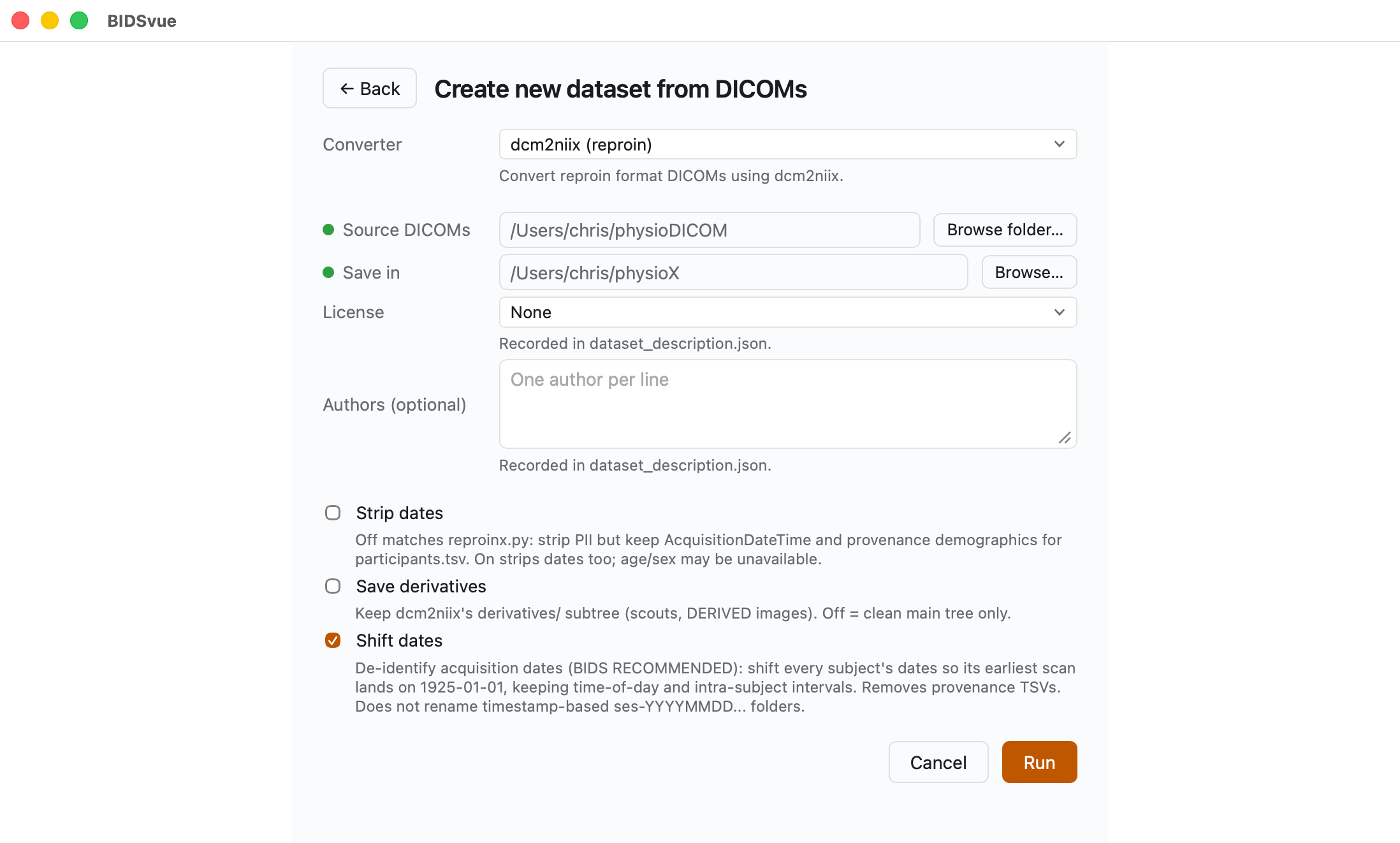
Launch BIDSvue and choose Create new dataset from DICOM, then select the dcm2niix (reproin) converter.
- For Source DICOMs, choose the extracted
physioDICOMfolder. - For Save in, pick a location with enough space and write permission.
- Adjust the optional items if you like.
- Press Run to create your dataset.
View the embedded physiological recordings
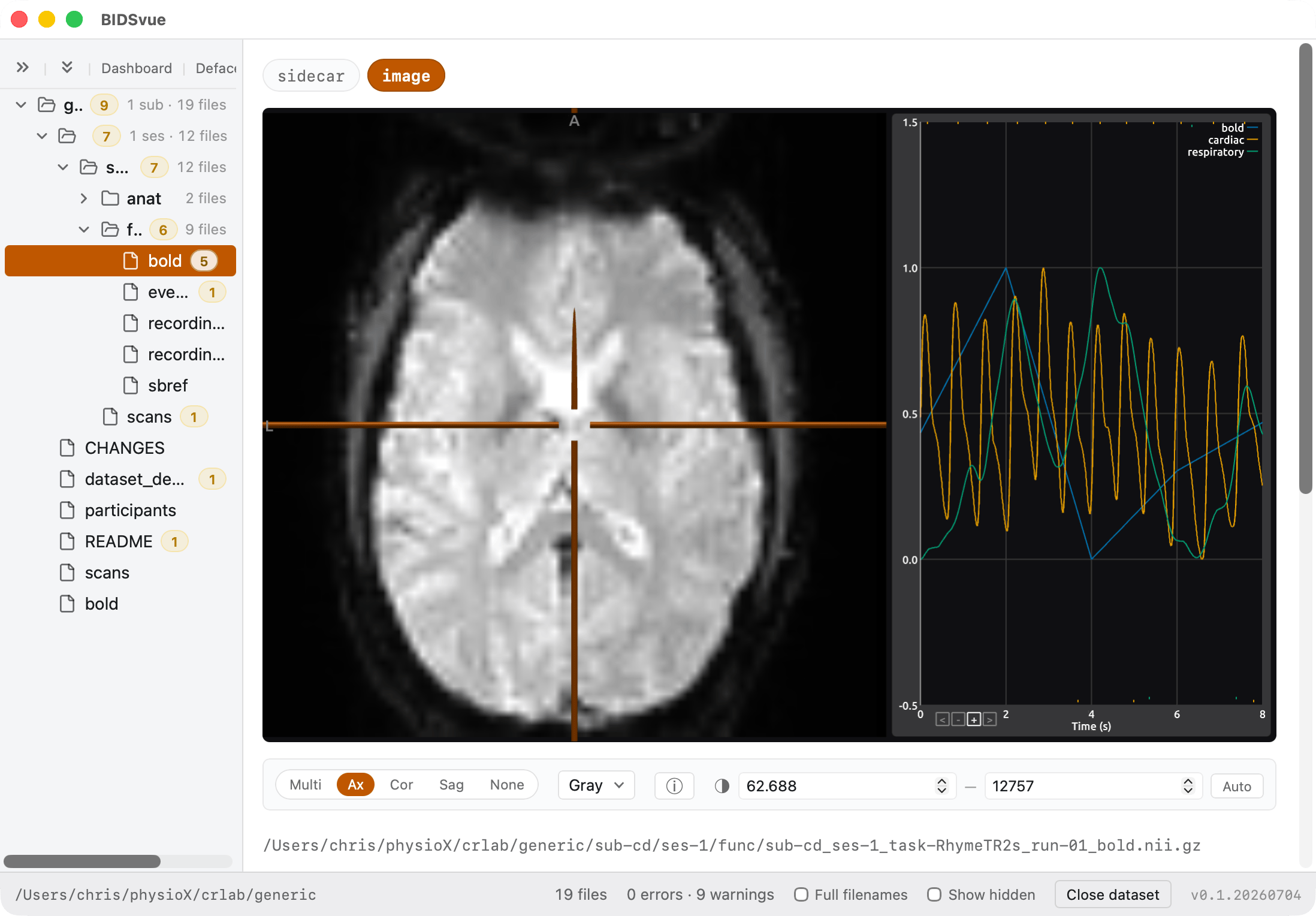
BIDSvue opens into the dataset view. The left tree lists every file; click a node to preview it, and watch the status bar confirm the bids-validator found no errors (though several warnings are reported).
Now inspect the sub-cd_ses-1_task-RhymeTR2s_run-01_bold files. Click the image and the graph shows the signal change for the selected MRI voxel (bold) as well as the cardiac and respiratory signals. The tick marks at the bottom of the graph mark a few missing samples; the tick marks at the top show the physiological triggers the scanner detected.
- Switching from the default
Multiview toAxialorNonelets the graph use more of the canvas. - The graph is interactive: click a different voxel in the slices and the graph shows that voxel's intensity (the non-spatial physiological measures are unaffected). Clicking along the horizontal time axis loads a different volume from the timeseries.
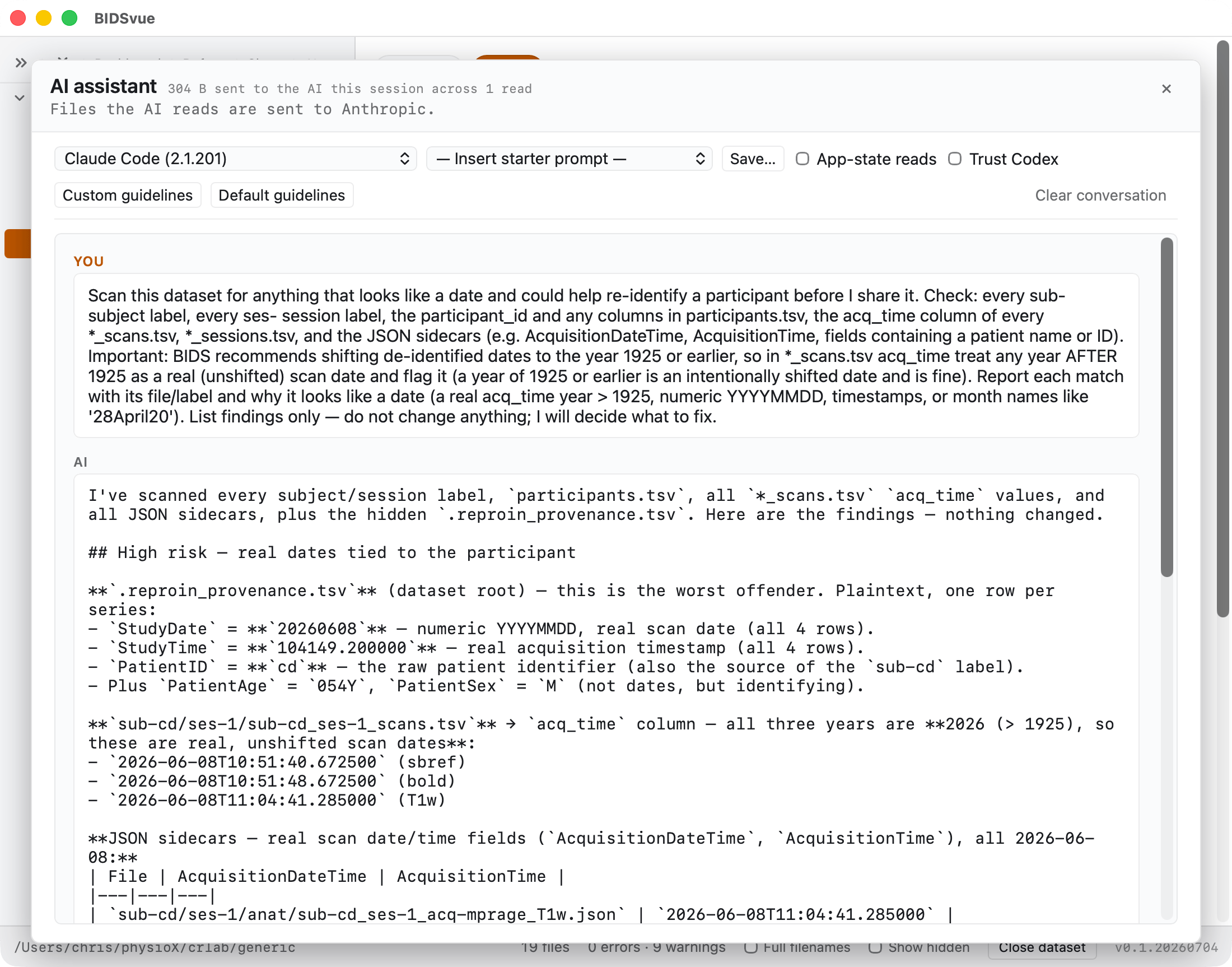
Refine BIDS with AI
Curating BIDS datasets is complicated. BIDSvue helps, but some details still aren't stored in the raw data — in particular, information about behavioral tasks and responses. Above the tree is a button labeled AI that lets you use artificial intelligence to help detect and fix issues.
Be aware that AI has a habit of hallucinating, so trust but verify. You may also want to be careful with cloud-based AI if you're worried about personal details leaking.
BIDSvue offers a few ways to mitigate these concerns. Tools like dcm2niix already anonymize details, so restricting the AI to only see the BIDS folder can improve privacy. BIDSvue also provides default guidelines and prompts that constrain and focus the AI's work.
- After you choose the
AIview, pick from the AI back-ends installed on your computer — Claude, Gemini, Ollama, OpenAI-compatible models, and Codex. (You can't use Codex unless you explicitly opt in to trusting it.) - Chat with the selected AI using any prompt, or start from one of the default prompts.
- You can also save your favorite guidelines.
- By design, BIDSvue only lets the AI modify your dataset through a built-in harness. This makes common edits easier (renaming a subject ID, say, touches many files) and improves security — but it also means the AI has less control, for better and worse, than if you gave it unrestricted access to a folder (for example, using Visual Studio Code with an AI).